
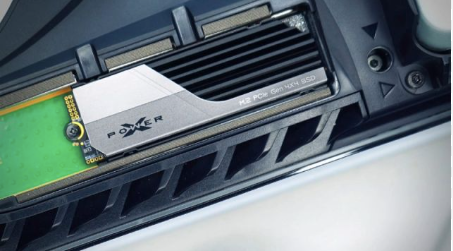
If you’re looking to expand your PlayStation 5’s storage, understanding how to use an m.2 ssd ps5 is a must. This powerful storage upgrade allows gamers to install more titles, enjoy faster load times, and experience smoother gameplay performance. In this article, we’ll walk you through compatibility requirements, installation steps, and key factors to consider before buying, so you can make the most out of your console’s next-gen potential.
Understanding M.2 SSDs for PS5
An M.2 SSD is a compact, high-speed storage drive that can expand your PS5’s storage, allowing you to install more games and enjoy faster load times. Not all M.2 SSDs work with the PS5, so it’s important to choose one that meets Sony’s requirements:
- Interface: PCIe Gen4 x4 NVMe.
- Sequential Read Speed: At least 5,500 MB/s for smooth gameplay.
- Form Factor: Supported sizes include 2230, 2242, 2260, 2280, and 22110.
- Cooling: Must have a heatsink or heat-dissipation solution to prevent overheating.
By selecting a compatible M.2 SSD, you can safely increase your PS5 storage while maintaining optimal performance and avoiding slowdowns due to thermal throttling.
Benefits of Using an M.2 SSD in PS5
- Faster Load Times
A high-speed M.2 SSD dramatically reduces how long it takes to start games, load levels, or switch between in-game areas. For example:
- Games with massive open worlds or detailed environments load much faster, so you spend less time staring at loading screens.
- In-game transitions, such as moving from one city to another or loading multiplayer maps, can feel almost instantaneous with SSDs that have read speeds over 7,000 MB/s.
- It makes gameplay feel smoother and more responsive.
- More Storage for Games
Installing an M.2 SSD expands your PS5’s storage capacity, which means:
- You can store more games without constantly deleting old ones.
- Large, high-quality games and their downloadable content can all stay on your console.
- It’s especially useful for collectors of digital games or players who like to switch between multiple titles frequently.
- Better Performance for High-End Games
High-speed SSDs help your PS5 handle graphics-intensive and large-scale games more efficiently:
- Games with large maps, complex textures, or detailed environments load and render faster.
- Faster asset streaming reduces stuttering, lag, or frame drops during intense gameplay moments.
- Multiplayer or online games benefit from smoother performance, making fast-paced action feel more fluid.
An M.2 SSD not only gives you more space but also improves speed and gameplay quality, letting your PS5 run at its best.
Choosing the Right M.2 SSD for PS5
Before upgrading your PS5 storage, make sure the SSD you pick meets Sony’s requirements. This keeps your games fast and your console safe.
- Speed: Look for an SSD with at least 5,500 MB/s sequential read speed. This matches or beats the PS5’s internal SSD, ensuring fast game loads.
- Size (Form Factor): The SSD must be one of these M.2 sizes: 2230, 2242, 2260, 2280, or 22110. The most common is 2280 which fits easily in the PS5 slot.
- Cooling (Heatsink): Gaming generates heat, which can slow down an SSD. A heatsink keeps it cool and maintains performance. Some SSDs have built-in heatsinks. Others need a separate heatsink that fits within the PS5’s size limits.
Choose an SSD that meets the speed, size, and cooling requirements to enjoy fast load times, smooth gameplay, and safe operation on your PS5.
Recommended M.2 SSDs for PS5
Here’s the three high-performance SSDs you can use to expand your PS5 storage:
- ADATA XPG MARS 980 BLADE
- Interface: PCIe Gen5 x4 – Extremely fast data transfer speeds.
- Form Factor: M.2 2280 – Standard size that fits easily in the PS5.
- Speeds: Up to 14,000 MB/s read, 13,000 MB/s write – Much faster than the PS5’s built-in SSD.
- Cooling: Built-in heatsink – Keeps the drive cool during heavy gaming.
- Capacity: Up to 4TB – Plenty of space for hundreds of games.
- PS5 Compatibility: Fully compatible.
- Best For: Gamers who want maximum speed and future-proof performance.
- WD_BLACK SN850X
- Interface: PCIe Gen4 x4 – Very fast, PS5 compatible.
- Form Factor: M.2 2280 – Easy to install.
- Speeds: Up to 7,300 MB/s read, 6,300 MB/s write – Fast enough for smooth PS5 performance.
- Cooling: Built-in heatsink available. Keeps the SSD safe during gaming.
- Capacity: 1TB – Flexible storage options.
- Best For: Players who want reliable, officially supported PS5 storage without overspending.
- Samsung 990 PRO
- Interface: PCIe Gen4 x4 – High-speed, PS5 compatible.
- Form Factor: M.2 2280 – Fits perfectly in the PS5.
- Speeds: Up to 7,450 MB/s read, 6,900 MB/s write – Fast loading and transfers.
- Cooling: May require a heatsink for PS5.
- Capacity: 1TB – Suitable for most gamers.
- PS5 Compatibility: Works well, though not officially licensed.
- Best For: Gamers who value durability and consistent performance.
Installation Guide
- Power Off and Unplug: Make sure your PS5 is completely turned off and unplugged from the wall. Even when off, it can still carry a small amount of electricity that might damage components or cause a shock. Unplugging keeps both you and your console safe.
- Remove the Back Faceplate: Lay your PS5 on a flat surface with the logo facing down. Gently slide off the back cover to access the inside. This lets you reach the M.2 SSD slot. Handle the cover carefully to avoid scratches or cracks.
- Access the SSD Slot: Find the M.2 SSD slot near the cooling fan. There’s a small cover held by a screw. Use a Phillips-head screwdriver to remove the screw and lift the cover off.
- Prepare the SSD Slot: Inside the slot, you’ll see a tiny screw and a spacer. Remove both. The PS5 supports several SSD lengths (2230, 2242, 2260, 2280, 22110). Adjust the spacer to match your SSD size so it fits snugly without wobbling.
- Insert the M.2 SSD: Align the SSD with the connector and insert it at a slight angle (about 30 degrees). Push it down gently and secure it with the screw. This keeps the SSD firmly in place.
- Reassemble the Console: Put the SSD slot cover back on and slide the back faceplate onto the PS5. Make sure everything fits properly and nothing is loose.
- Reconnect and Format: Plug the PS5 back in and turn it on. The system will detect the new SSD and guide you to format it. Formatting is required for the PS5 to store and run games on the SSD.
Following these steps carefully ensures a safe installation and allows your PS5 to use the SSD for extra storage and faster game load times.
Maintenance and Optimization Tips
- Keep Your PS5 Clean: Regularly clean your PS5 by wiping vents and fans, and keep it in a well-ventilated area to prevent overheating.
- Watch Your Storage: Monitor your SSD space and delete or move unused games to keep your PS5 running smoothly.
- Keep System Updated: Install the latest PS5 software updates. They help your SSD and console work better.
- Install Games Smartly: Store frequently played games on the SSD for faster loading, and move or manage less-used game data to save space.
- Don’t Overuse the SSD: Avoid excessive moving or rewriting of large files to extend your SSD’s lifespan.
- Shut Down Properly: Turn off your PS5 completely sometimes instead of always leaving it in rest mode. This keeps the system fresh.
- Backup Your Data: Use an external drive or cloud storage to save your game progress in case something happens to your SSD.
- Watch Temperature: Ensure the PS5 isn’t too hot. Overheating can reduce the SSD’s lifespan and slow down performance.
Following these simple tips helps your PS5 and SSD stay fast, safe, and last longer.




![Top 8 LED Module Manufacturers in China: The Ultimate Guide [2026]](https://technewsenglish.com/wp-content/uploads/2026/03/Screenshot-2026-03-14-011215-390x220.png)